Two-factor authentication (2FA)
Protect your account with a time-based one-time password (TOTP) from an authenticator app.
Enable 2FA
- Open Settings → Two-factor authentication.
- Choose Enable and scan the QR code with your authenticator app (Google Authenticator, 1Password, Authy, etc.).
- Enter the six-digit code to confirm.
- Save your backup codes immediately - they are shown once.
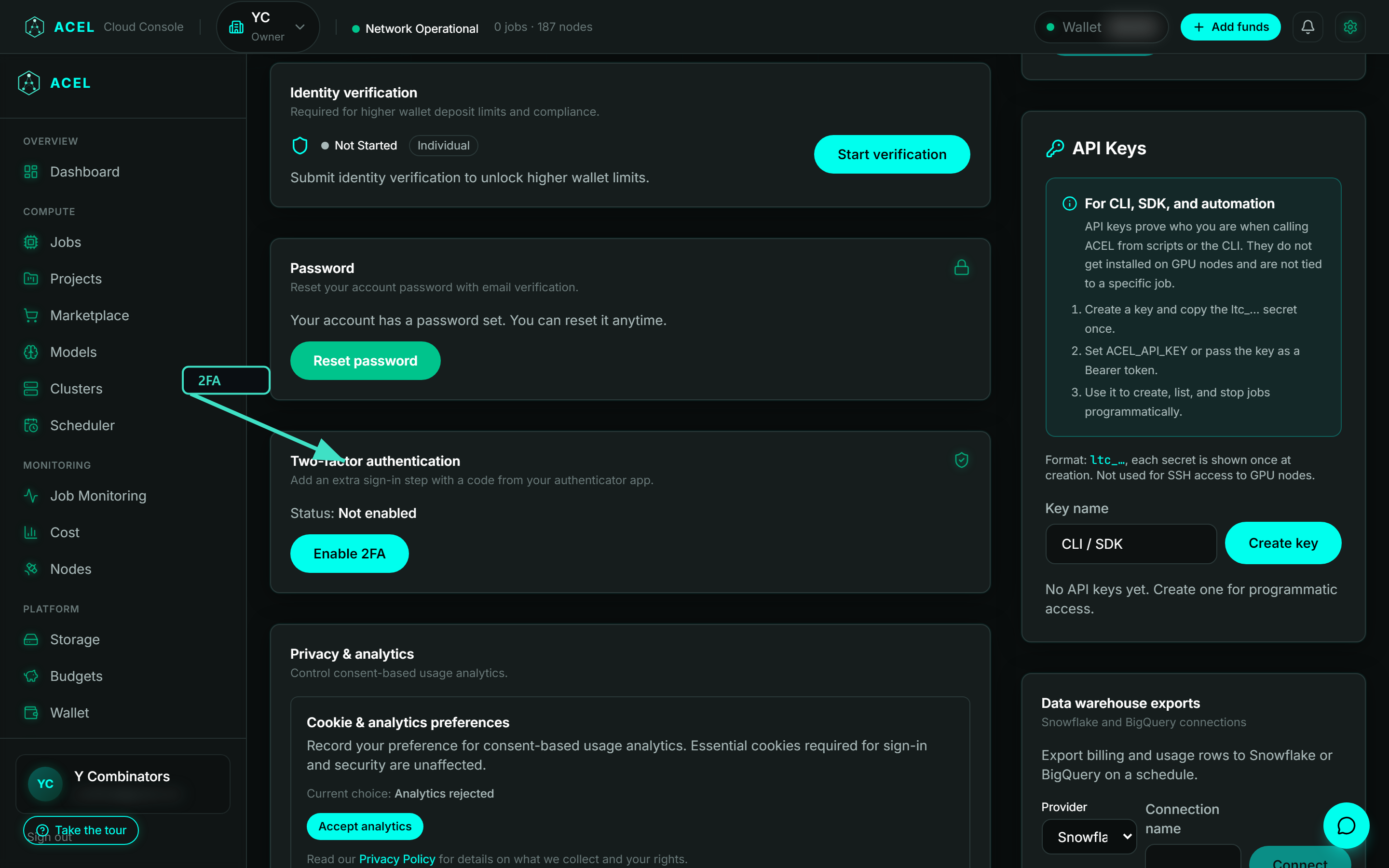 QR setup and backup code step (capture stops before storing codes in screenshots).
Sign in with 2FA
After password or OAuth, enter the current TOTP code. If you cannot use the app, use a backup code instead (each code works once).
Regenerate backup codes
- Open Settings → Two-factor authentication.
- Choose Regenerate backup codes (you may need your password or re-auth).
- Store the new set securely; old codes stop working.
Disable 2FA
- Open Settings → Two-factor authentication.
- Choose Disable and confirm with password/TOTP as prompted.
Account recovery
Disabling 2FA reduces protection. Keep backup codes offline and never share TOTP secrets.